Live Chat for an Online Store: What to Set Up First
· 2 min read
Shoppers in an online store tend to ask the same things: is this size in stock, when will it arrive, can I pay on delivery. They need the answer before they check out. If it isn't within reach, they open another store.
A live chat is meant for exactly that. Below is what to set up first, and how it works in PulseMarko.
1. An invitation where the questions come up
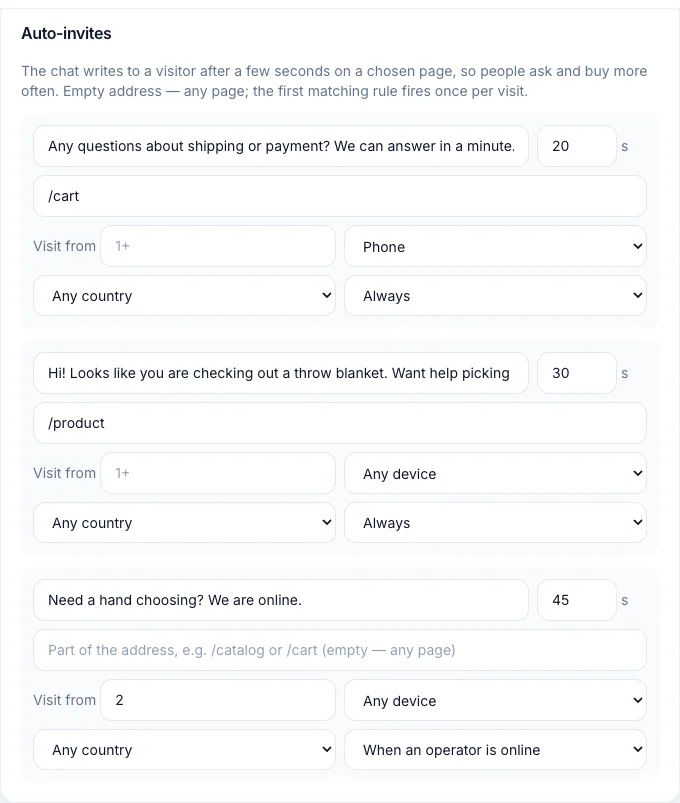
The setting is called "Auto-invitations". You give a part of the page address, the number of seconds to wait, and the text. For example: on pages whose address contains /cart, after 20 seconds, "Any questions about shipping?". An empty address means any page.
You can create up to five rules. An invitation can also be limited by device (phone or computer), by the visitor's number of visits, and by whether an operator is online right now.
Don't put an invitation on every page. On the home page it tends to get in the way.
2. Nights and weekends
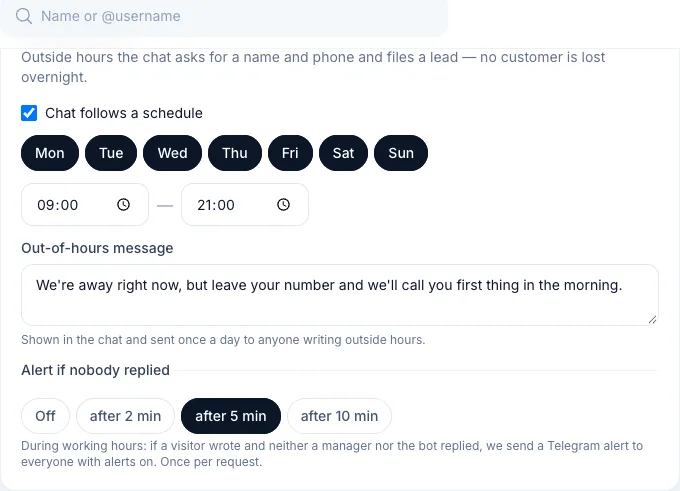
The store runs around the clock; your team doesn't. Working hours are set in the chat settings. Outside them the chat shows your text, asks for a name and phone number, and saves the request in Leads. In the morning you call or write first.
3. Answering from a phone
Nobody has to sit in the dashboard. Visitor messages arrive in Telegram, and you answer with the usual Reply to the bot's message. Setup takes three steps: create a bot, link your own Telegram, receive a test message. The wizard says it takes about five minutes.
You choose when to forward: always, only when nobody is in the dashboard, or when a visitor has waited longer than the time you set.
4. A photo from the buyer
When the wrong model arrives or an item is defective, explaining in words takes long. Visitors can attach a photo or PDF up to 10 MB, and it reaches you with the message.
5. See who is on the site now
The "On site now" view shows visitors, their current page and their device. If someone has been sitting on an expensive product for a while, you can write to them first.
6. Installing on your platform
For WordPress (including WooCommerce), OpenCart, PrestaShop, Joomla and Drupal there are ready plugins with your chat address already filled in. For Shopify, Tilda, Wix and other platforms you paste a code snippet before </body>; the installation page has instructions for each platform. See how to add live chat without a developer.
What it costs
A permanent free tier: 1 site and 100 conversations a month. A "conversation" is a visitor who wrote this month. If your store needs more, see the plans on the module page. For what a live chat is and how to choose one, read how to choose a website live chat.
Try it in PulseMarko
Sell in messengers without routine
Chatbots, broadcasts, in-chat payments and every conversation in one place. 14 days of every module free.
Try for free