How to Add Live Chat to Your Website Without a Developer
· 2 min read
You can add a live chat to your site yourself. It takes one line of code pasted into your pages, or a plugin. Here is the order in PulseMarko.
Step 1. Create the chat
Sign up and click "Create web chat". Enter your site's address. The chat works only there: pasted on someone else's site, the code shows nothing. You can change the addresses later.
Step 2. Paste the code or install a plugin
The "Installation" page shows your code. It goes before the closing </body> tag. Where to do that:
- Shopify. Online Store → Themes → Edit code →
layout/theme.liquid→ paste before</body>→ Save. - Wix. Settings → Custom Code → Add Custom Code → paste, choose All pages and Body — end → Apply. Needs a premium plan with a connected domain.
- Tilda. Site Settings → More → "HTML code for the HEAD section" → paste → Save, then republish all pages.
- Google Tag Manager. Tags → New → Custom HTML → paste → trigger All Pages → Submit.
- WordPress, Joomla, OpenCart, PrestaShop, Drupal. Download the ready plugin from the same page. Your chat address is already inside; you just upload the archive in your site's admin.
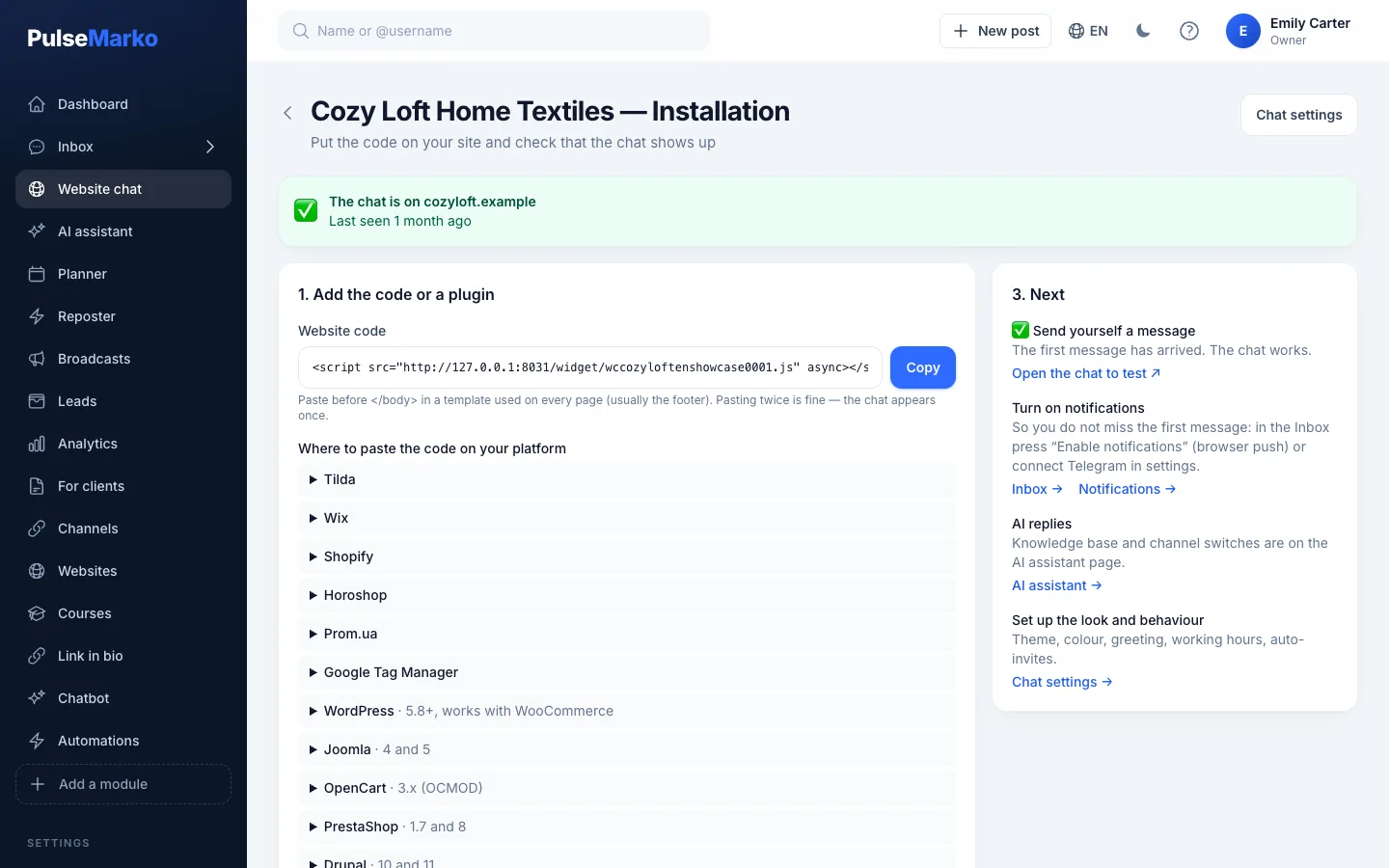
If your site builder has no field for third-party code, look in its help for the section on counters and pixels: the chat code goes in the same place.
Step 3. Check it
Click "Check" and enter the address of a page where the chat should be. We open it and look for the code. If it says the code isn't there but you've just pasted it, clear your site's cache or republish the pages, then check again.
Then open your site, click the chat button and send yourself a message. It appears in the Inbox.
Step 4. Connect replies from Telegram
So you don't have to sit in the dashboard, connect Telegram. The wizard has three steps: create a bot with BotFather, link your own Telegram, and receive a test message. After that visitors' messages reach you in Telegram, and you answer by tapping Reply on the bot's message.
Step 5. Set the look and the night mode
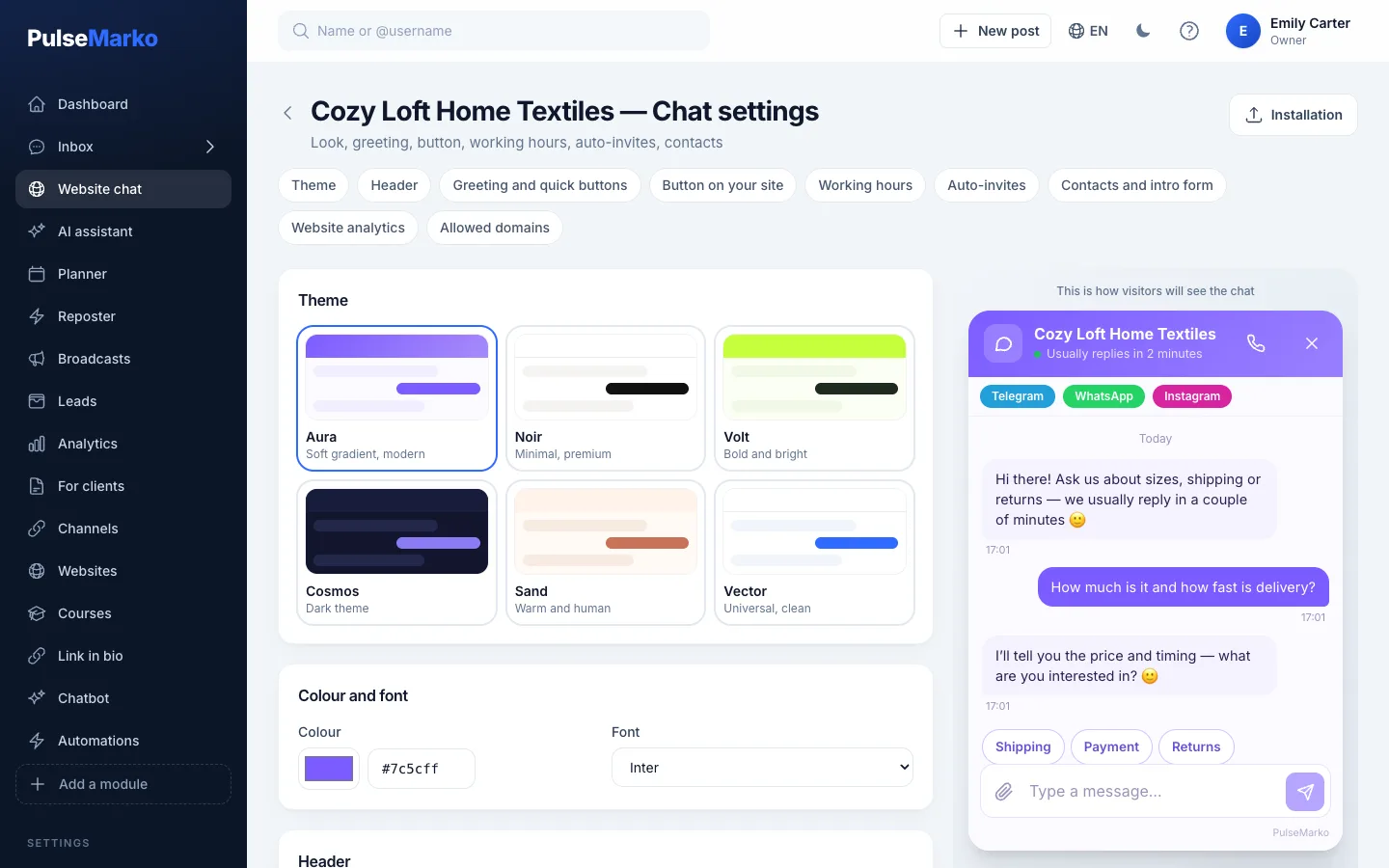
In "Chat look" you change the color, theme, title and greeting. In the "Working hours" block you write the off-hours text: outside the hours the chat asks for a name and phone number and saves a lead.
If the chat doesn't show up
- The code sits before
</body>on the pages where you're looking. - The site address in the chat settings matches exactly how your site opens.
- The site cache is cleared and the pages are republished.
- Click "Check": the message tells you what's wrong.
The free tier: 1 site and 100 conversations a month, no time limit. What a chat can do and how to choose one is in the overview; all features are on the module page.
Try it in PulseMarko
Sell in messengers without routine
Chatbots, broadcasts, in-chat payments and every conversation in one place. 14 days of every module free.
Try for free